
Watch & learn · 1:44
How to play Forged Realms in Mudlet: connection, maps and chat
Follow a character from the Temple into North Temple Square in Mudlet. The room map follows each move, the atlas shows how areas connect, and tells have a place of their own alongside gossip.
In this video
- Connect securely or update the profile you already use.
- Follow your position on the room map and browse the world atlas.
- Keep group health, class resources, and private tells in reach.
Connect with your usual profile
In Mudlet, open your Forged Realms profile or create one if this is your first visit. Set the host to mud.forgedrealms.net and the port to 4001, turn on Secure / TLS and leave certificate verification enabled. Click Connect and follow the character-name prompt.
Enable GMCP and Allow server to install script packages for automatic setup. If you already have a personal map, it stays in your profile when you update. Port 4000 with Secure off is available for an unencrypted connection.
MUDLETMAP INSTALL- Install or update the map, chat tabs and panels together.
Choose your route
Type FRMAP to open the room map. With the public map installed, your marker follows your character as you move. Double-click a reachable room to start walking to it.
Type FRMAP WORLD to open the atlas. Select an area to see where it connects. Browsing keeps you in place. Choose Walk to this area when you are ready to travel to an entrance.
FRMAP STOP- Stop an active walk before its next step.
Follow a friend through a busy room
Tells holds private messages and Channels includes gossip. Both appear in All, so you can choose how much conversation to follow while you move.
The party panel appears when you group with someone. The class panel follows your current character and form, including Current for a Flow Monk.
FRUI CHAT TELLS- Open private messages from the keyboard.
FRUI SETTINGS- Read or change the panel settings for this profile.
Read the video transcript
Want to explore Forged Realms in Mudlet?
Open the connection window and create a profile, or edit the one you already use.
Enter the host shown here.
Set the port to 4001, turn on the secure connection, and connect.
For plain Telnet, use port 4000 with TLS off.
Already have a profile?
Log in with your usual character and type MUDLETMAP INSTALL.
It's one package for the map, chat, and player panels.
Leave GMCP and server package installs enabled.
Your personal map, notes, and saved panel choices stay with your profile.
This is the North Temple Square in Midgaard.
Watch the red marker as I head south.
The room map follows each move.
Type FRMAP to open the local map.
On the public map, double-click a reachable room to walk there.
For the bigger picture, type FRMAP WORLD.
Here I'm selecting the Northern Passage to see how it connects.
Browsing keeps your character in place.
When you're ready, choose Walk to this area.
FRMAP STOP ends the walk.
Gossip goes to Channels.
Private messages go to Tells.
All shows both, and the main transcript keeps the conversation.
Click a tab, or type FRUI CHAT TELLS to open your private messages from the keyboard.
As Alder joins my group, the party panel shows both players' health.
My Flow Monk also gets a Current display.
Type FRUI SETTINGS to choose the panels you want.
Come explore with us.
The Mudlet guide and Discord invite are in the description.
Or play right in your browser at play.forgedrealms.net.
Recorded with demo characters in the open beta. Scenes may be edited for explanation; interfaces and ability balance can change.
Your next chapter
All videos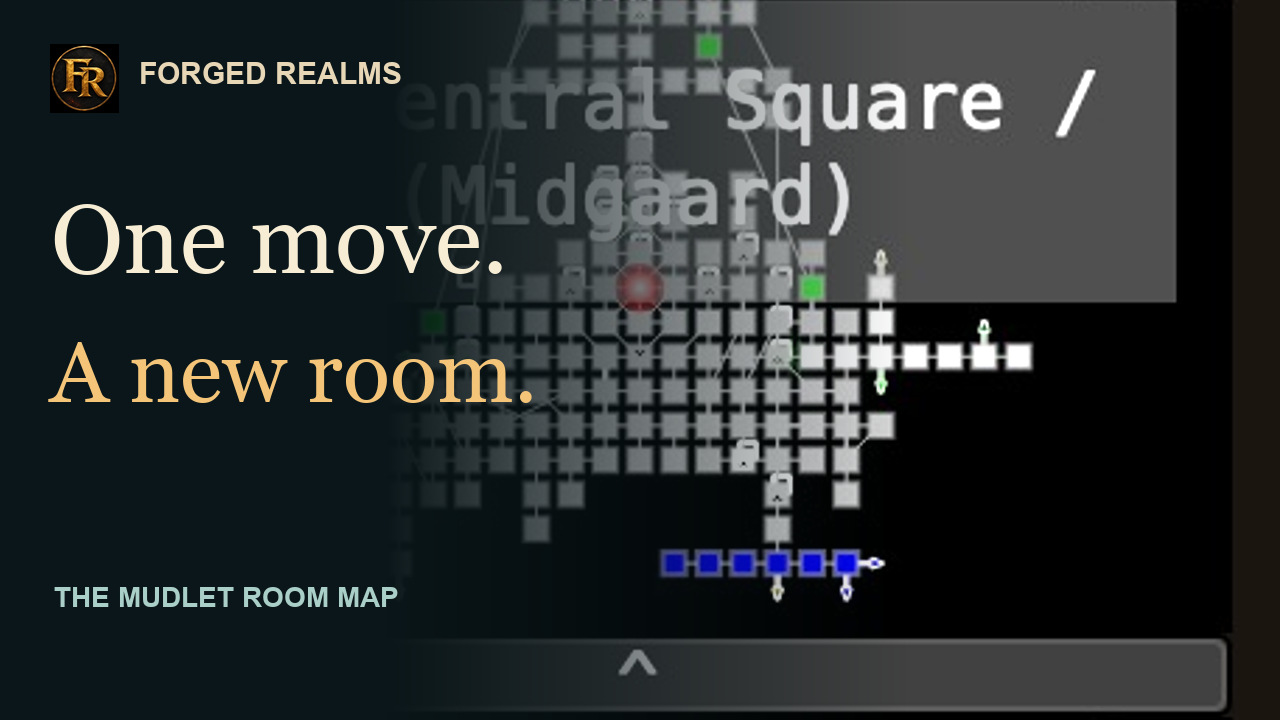
Mudlet Short
The Mudlet map in motion
Watch a room change and the world atlas in native Mudlet. This Forged Realms Short includes the secure connection and the one-command profile update.
Watch the video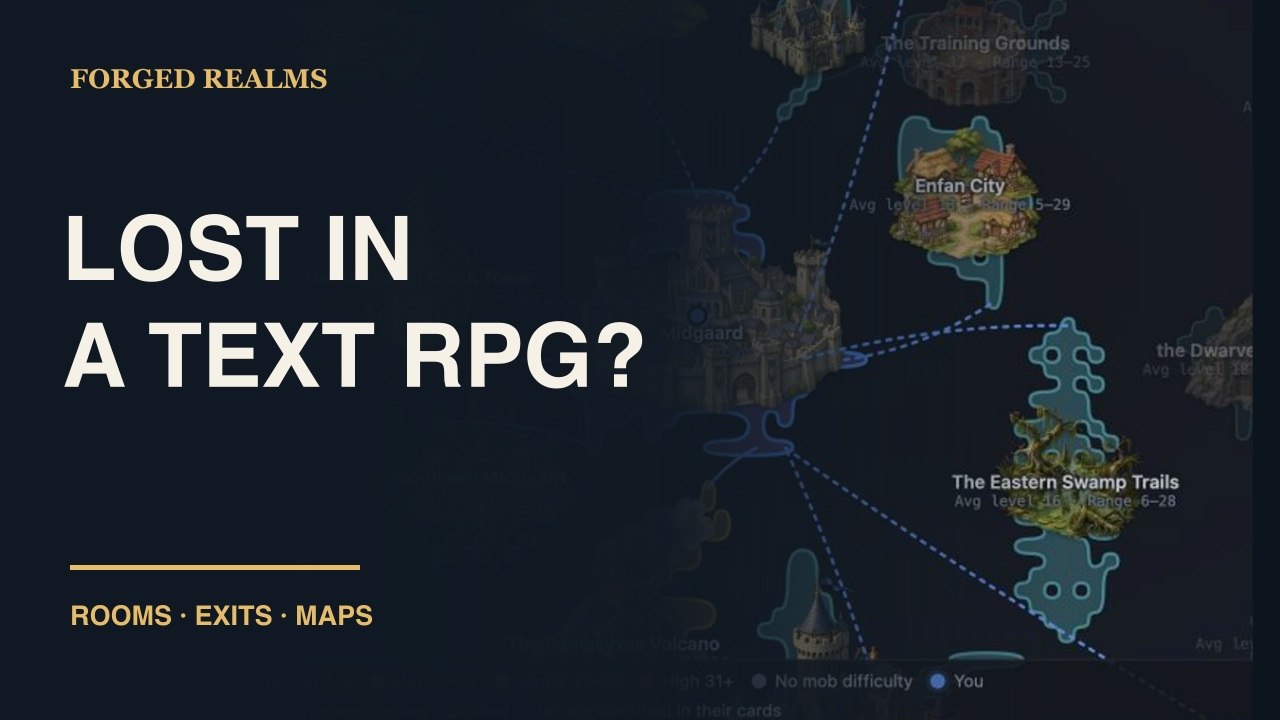
Exploration
Read a room. Find your way.
Learn to read room descriptions, follow available exits, and use the minimap, World map, Zone map, and floor controls in Forged Realms. Watch the navigation guide and follow the written steps.
Watch the guide