
Watch & learn · 0:51
How to play a MUD: create your first character in the browser
You can start a text RPG in a browser tab. This short walkthrough shows character creation and your first move in Forged Realms, with written steps to follow at your own pace.
In this video
- Open the browser client and follow character creation.
- Choose a starting class and meet the welcome guide.
- Try a movement command and watch your map update.
Open the game and create a character
Choose Play in your browser on this page. In the client, add or connect a character and follow the game's name and creation prompts. Use a character name you would like other players to see, and keep your password private.
If you already have a character, connect with that character instead of creating it again. Follow the current prompts on screen; the beta may look a little different from the recording.
Choose a class that sounds fun
The video creates a Warrior. You can choose the starting class that fits the way you want to play: frontline fighting, stealth, healing, or spellcasting. The class compendium explains the choices and lets you look more deeply at their skills and spells.
There is no need to understand every class interaction before entering the world. Pick one character, read the welcome instructions, and begin with the basics.
Meet Auri and take your first step
After the welcome screens, enter the game and read Auri's directions in the welcome area. The room text explains your surroundings; the minimap shows how nearby rooms connect.
When the room offers a north exit, type north and press Enter. The game describes the next room, and the map's position marker moves with you. Try look to read the room again.
north- Move through an available north exit.
look- Read the room again before choosing your next action.
Ask for help as you go
HELP NEWBIEGUIDE explains the first steps and the return command for new characters. The website's beginner guide also covers equipment, parties, and connecting with another MUD client.
If something does not behave as expected, ask in Discord and describe what you tried and where you were. The beta is open to explore, and feedback helps improve the welcome experience.
help newbieguide- Open the game's beginner instructions.
Read the video transcript
Your first five minutes in Forged Realms.
Go to forgedrealms.net and choose Play in your browser.
There’s nothing to install.
Name your character, follow the prompts, and choose a class.
W selects Warrior.
Press Return at the welcome message.
Then choose one to enter the game.
Auri starts you with gear and directions.
The minimap shows how the rooms fit together.
Type north and press Enter.
The room description and the marker on your map update as you move.
If you get turned around, type HELP NEWBIEGUIDE.
It explains how to return to the welcome area.
The beta is open.
Come explore, and find us in Discord.
Recorded with demo characters in the open beta. Scenes may be edited for explanation; interfaces and ability balance can change.
Your next chapter
All videos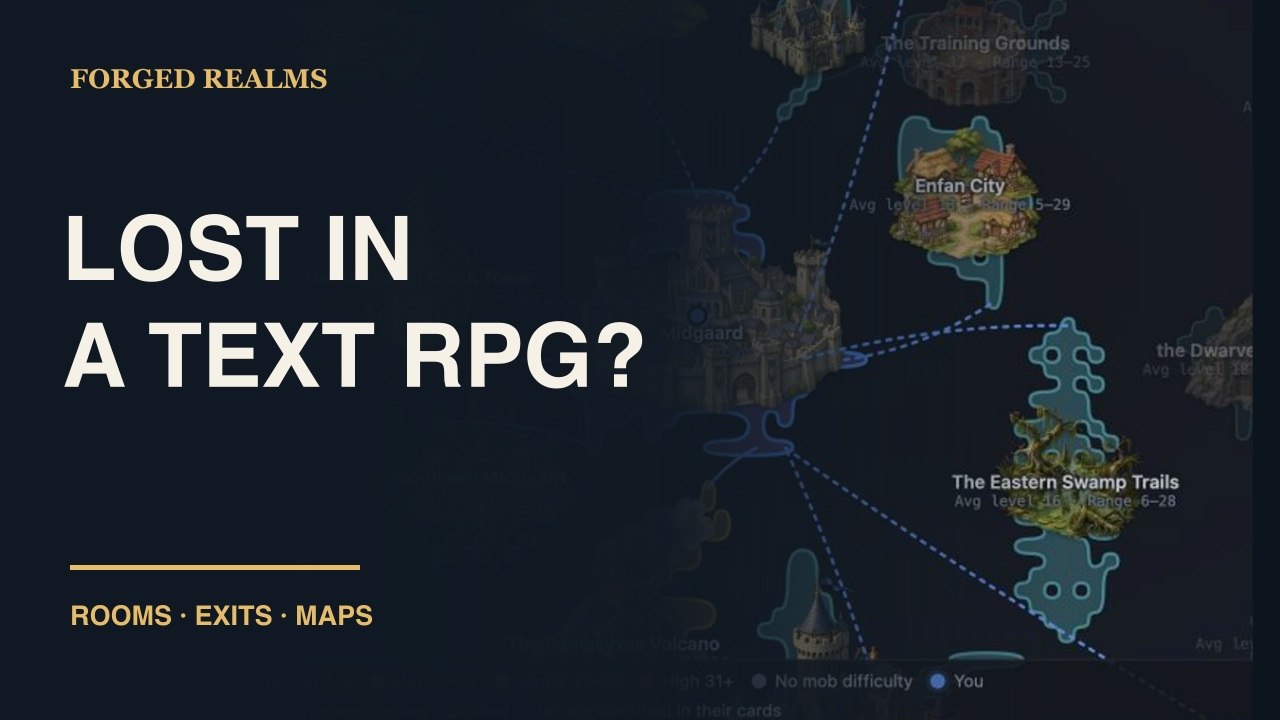
Exploration
Read a room. Find your way.
Learn to read room descriptions, follow available exits, and use the minimap, World map, Zone map, and floor controls in Forged Realms. Watch the navigation guide and follow the written steps.
Watch the guide
Start here
An adventure made of words
See how a MUD turns room descriptions, typed commands, and other players into a shared fantasy adventure. Watch real Forged Realms gameplay, then try the browser beta.
Watch the guide